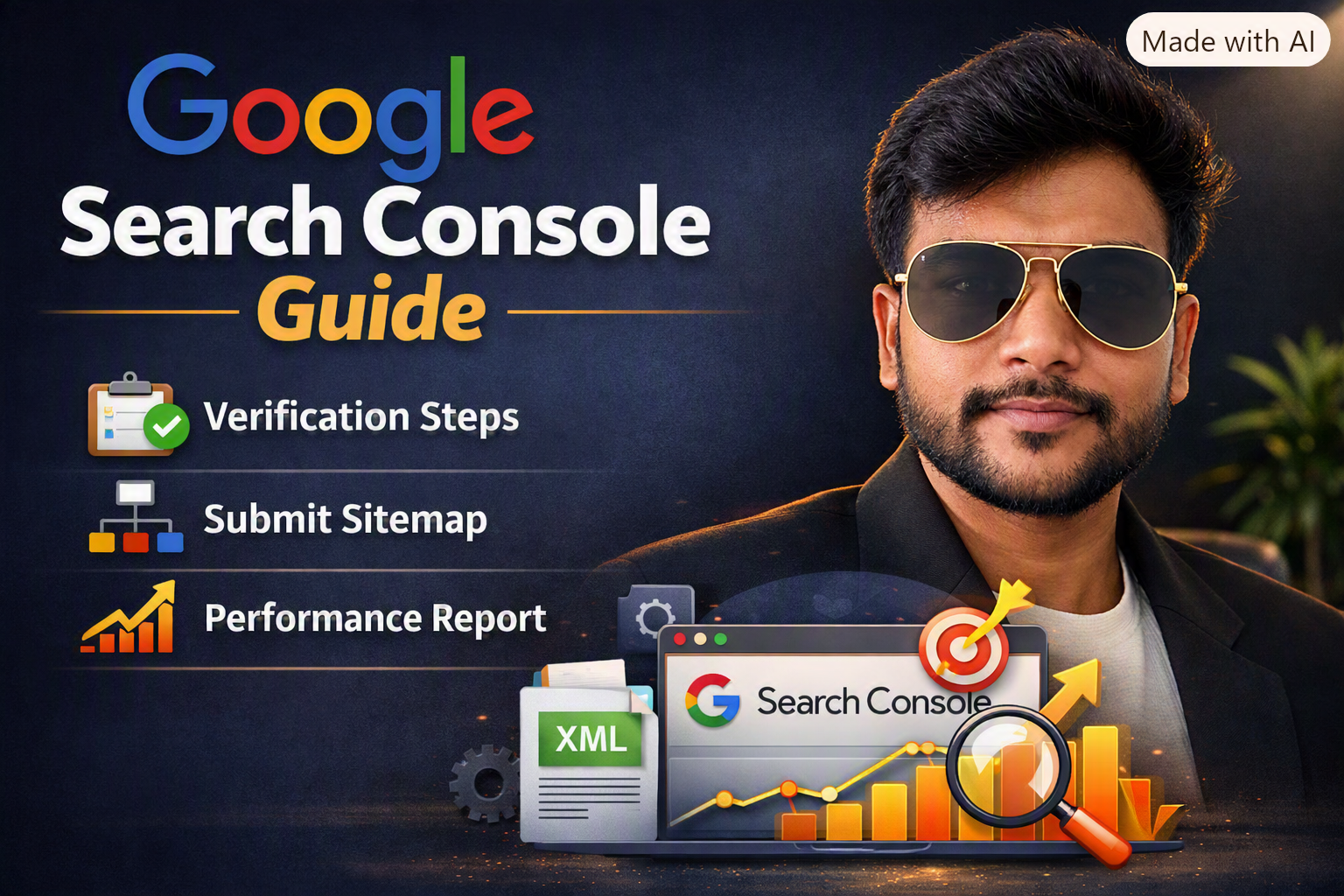
🌐 Google Search Console क्या है?
 Google Search Console (GSC) एक free toolGoogle Search Console kaise kare: है जो आपकी वेबसाइट की Google Search performance को monitor और improve करने में मदद करता है। इससे आप जान सकते हैं कि आपकी साइट कौन‑से keywords पर rank कर रही है, कितने clicks मिल रहे हैं, कौन‑से pages index हुए हैं, और कौन‑से errors हैं।
🔗 Google Search Console Official Page (search.google.com in Bing) 🖼️ Logo Reference: Google Search Console logo (नीला‑हरा “G” आइकन)
🧭 Step‑by‑Step: Google Search Console Setup कैसे करें
1️⃣ Google Account से Login करें
 सबसे पहले Google Search Console (search.google.com in Bing) पर जाएँ और अपने Gmail account से login करें।
2️⃣ Property Add करें
“Add Property” पर क्लिक करें। यहाँ दो options मिलेंगे:
- Domain Property → पूरे domain को track करता है
- URL Prefix Property → किसी specific URL को track करता है
👉 Beginners के लिए “URL Prefix” आसान होता है।
🔍 Website Verify कैसे करें
Google Search Console kaise kare: Verification जरूरी है ताकि Google को पता चले कि आप उस साइट के owner हैं।
Verification Methods:
- HTML File Upload
- एक HTML file download करें और अपनी साइट के root folder में upload करें। 🔗 HTML Verification Guide (support.google.com in Bing) 🖼️ Logo: HTML file icon
- HTML Tag Method
<meta>tag को अपनी साइट के<head>section में paste करें।
- Google Analytics / Tag Manager
- अगर आपकी साइट पहले से Google Analytics से जुड़ी है, तो उसी से verify कर सकते हैं। 🔗 Google Analytics (analytics.google.com in Bing) 🖼️ Logo: Google Analytics orange graph icon
📊 Performance Report समझें
Verification के बाद “Performance” tab में आपकी साइट की search data दिखेगी।
Google Search Console kaise kare: यहाँ आप देख सकते हैं:
- Total Clicks
- Total Impressions
- Average CTR
- Average Position
🔗 Performance Report Help (support.google.com in Bing) 🖼️ Logo: Graph chart icon
Tips:
- High‑CTR pages को identify करें और उनके titles optimize करें।
- Low‑CTR pages के लिए meta description सुधारें।
🧩 Index Coverage Report
Google Search Console kaise kare: यह report बताती है कि कौन‑से pages Google में index हुए हैं और कौन‑से नहीं।
Errors जैसे:
- 404 Not Found
- Server Error (5xx)
- Redirect Issues
🔗 Index Coverage Guide (support.google.com in Bing) 🖼️ Logo: Warning triangle icon
👉 Regularly check करें ताकि आपकी साइट के सभी pages properly index हों।
🗺️ Sitemap Submit करें
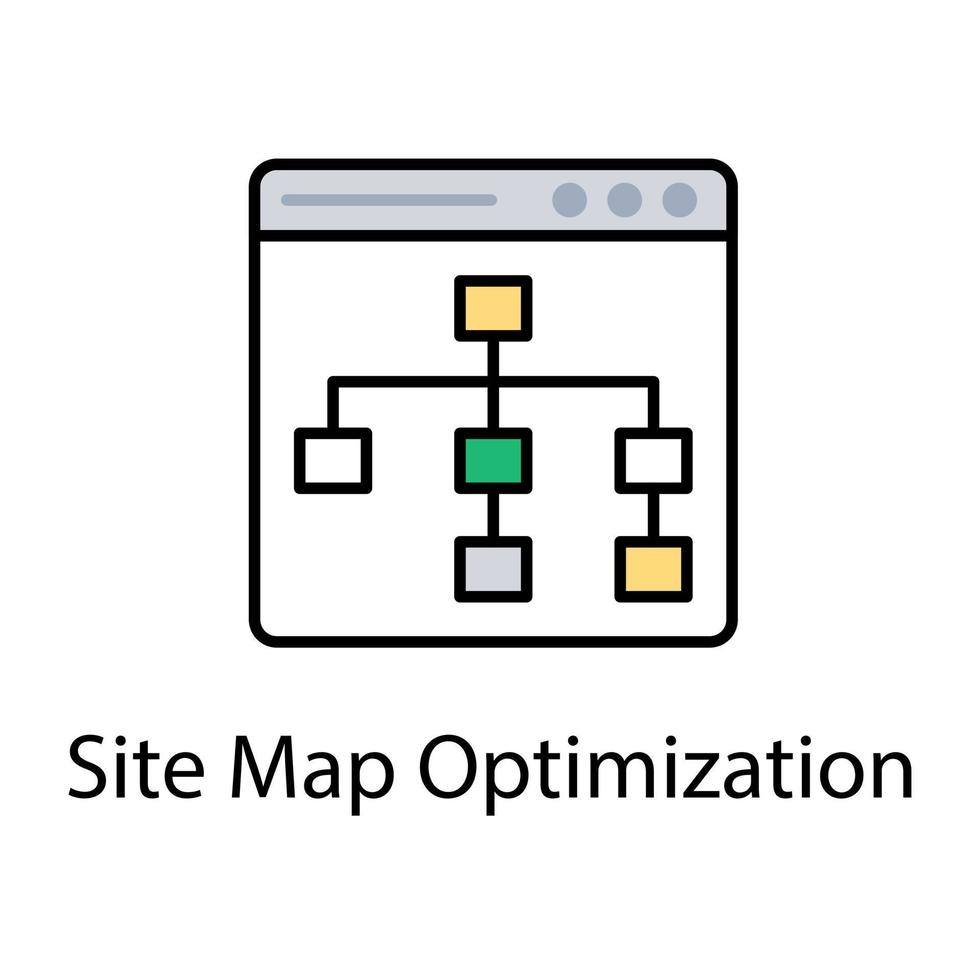
Sitemap Google को आपकी साइट के structure को समझने में मदद करता है।
- अपनी साइट का sitemap URL खोजें (जैसे
https://example.com/sitemap.xml) - Search Console में “Sitemaps” section में जाकर submit करें।
🔗 Sitemap Submission Guide (support.google.com in Bing) 🖼️ Logo: XML file icon
🔗 Links Report
यह section बताता है कि आपकी साइट को कौन‑सी websites link कर रही हैं (backlinks) और आपकी internal linking कैसी है।
🔗 Links Report Help (support.google.com in Bing) 🖼️ Logo: Chain link icon
👉 Internal linking improve करने से SEO और user navigation दोनों बेहतर होते हैं।
📱 Mobile Usability Report
Google Search Console kaise kare: Google mobile‑friendly websites को प्राथमिकता देता है। यह report बताती है कि आपकी साइट mobile devices पर कैसी दिखती है।
Common issues:
- Text बहुत छोटा है
- Clickable elements बहुत पास हैं
- Content screen से बाहर जा रहा है
🔗 Mobile Usability Guide (support.google.com in Bing) 🖼️ Logo: Smartphone icon
⚙️ Page Experience & Core Web Vitals
Google Search Console kaise kare: यह metrics बताती हैं कि आपकी साइट users को कैसा experience दे रही है।
Main factors:
- LCP (Largest Contentful Paint)
- FID (First Input Delay)
- CLS (Cumulative Layout Shift)
🔗 Core Web Vitals Guide (web.dev in Bing) 🖼️ Logo: Speedometer icon
👉 PageSpeed Insights से performance check करें: 🔗 PageSpeed Insights (pagespeed.web.dev in Bing)
🧠 Search Queries Analyze करें
Google Search Console kaise kare: Search Console में “Queries” tab दिखाता है कि users आपकी साइट को किन keywords से ढूंढ रहे हैं।
Example:
- “Blog कैसे शुरू करें”
- “SEO क्या है”
- “Google Search Console कैसे करें”
इन queries को analyze करके आप नए content ideas पा सकते हैं।
🧩 URL Inspection Tool
यह tool किसी specific page की indexing status दिखाता है।
आप देख सकते हैं:
- Page indexed है या नहीं
- Last crawl date
- Canonical URL
- Mobile usability
🔗 URL Inspection Guide (support.google.com in Bing) 🖼️ Logo: Magnifying glass icon
🧱 Manual Actions & Security Issues
Google Search Console kaise kare: अगर आपकी साइट Google की policies violate करती है, तो यहाँ warning मिल सकती है।
🔗 Manual Actions Help (support.google.com in Bing) 🖼️ Logo: Shield icon
👉 Spammy backlinks या duplicate content से बचें।
📈 Google Search Console Insights
यह feature आपकी साइट के top‑performing content और audience behavior दिखाता है।
🔗 Search Console Insights (search.google.com in Bing) 🖼️ Logo: Lightbulb icon
🧩 Common Mistakes जिनसे बचें
- Sitemap submit करना भूल जाना
- Broken links fix न करना
- Mobile usability ignore करना
- Search intent match न करना
- Structured data गलत लगाना
🧭 Conclusion
Google Search Console kaise kare: Google Search Console आपकी वेबसाइट के SEO को समझने और सुधारने का सबसे powerful free tool है। अगर आप इसे सही तरीके से इस्तेमाल करते हैं, तो आप अपने organic traffic को कई गुना बढ़ा सकते हैं।Contact UsTerms & ConditionsPrivacy PolicyDisclaimerAbout Us